

UI Mode
Tapsmith’s UI mode is a browser-based interactive test runner with built-in MCP integration. Like watch mode, it keeps the daemon, device, and agent alive across re-runs, bringing re-run times down to roughly 1-2 seconds.
Starting UI mode
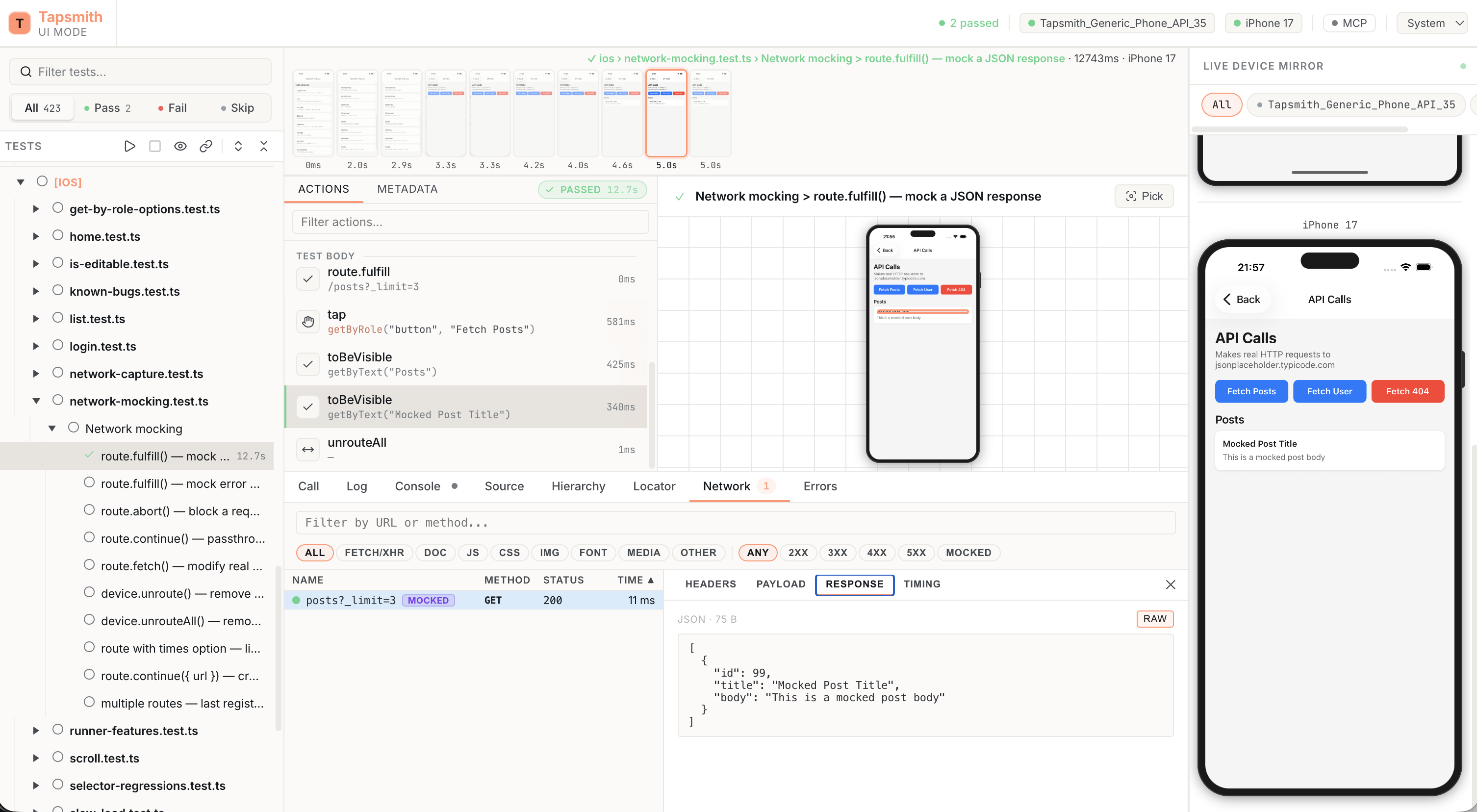
Section titled “Starting UI mode”npx tapsmith test --uiThis opens an interactive web-based test runner in your browser. The UI server picks an available port automatically and prints the URL to the terminal.
To set a specific port:
npx tapsmith test --ui --ui-port 8080Features
Section titled “Features”The UI provides:
- Interactive test tree — tests are listed in a tree structure, grouped by file and
describeblock. When projects are configured, tests are grouped by project first. - Click to run — click any test, file, or project node to run it. You can also run the entire suite.
- Live progress — test results stream into the UI in real time as tests execute. You see pass/fail status, duration, and error details as each test completes.
- Result browsing — after a run, browse results with error messages, stack traces, screenshots, and trace data inline.
- Watch mode toggle — toggle file-level watching from the UI. When a file’s watch is enabled, it re-runs automatically on save (the same mechanism as
--watchmode). - Interactive device mirror — the UI streams the device screen and lets you drive it with your mouse and keyboard: click to tap, drag to swipe/scroll, click-and-hold to long-press, and type to enter text. See Interacting with the device mirror.
Interacting with the device mirror
Section titled “Interacting with the device mirror”The live device mirror is interactive — drive the device straight from the browser, with no attached debugger or window-switching:
- Tap — click anywhere on the mirror.
- Swipe / scroll — drag with the mouse; the screen tracks the drag.
- Long-press — click and hold.
- Text input — the mirror takes keyboard focus on click; type to enter text (Enter and Backspace are forwarded too).
These drive the same coordinate gestures exposed in the SDK (device.tapXY, device.dragXY, device.longPressXY, device.inputText — see the API reference).
Lock toggle. A lock control in the mirror header governs interactivity. It’s unlocked (interactive) by default and auto-locks while a run is active so your input can’t interfere with a running test. You can override it at any time — an explicit lock sticks until you unlock, while an unlock during a run lasts only for that run.
Picking locators from the mirror
Section titled “Picking locators from the mirror”The pick button (crosshair icon) in the mirror header turns the mirror into an element picker. While picking, clicks are not forwarded to the device — instead:
- Hover highlights the element under the cursor.
- Click selects the element and opens the Locator tab with suggested locators (role, text, test ID, …). Suggestions are checked for uniqueness against the device’s current UI, and match highlights draw directly on the mirror.
- Editing the locator in the Locator tab updates the match highlights live, so you can refine a selector against the real app state without running a test.
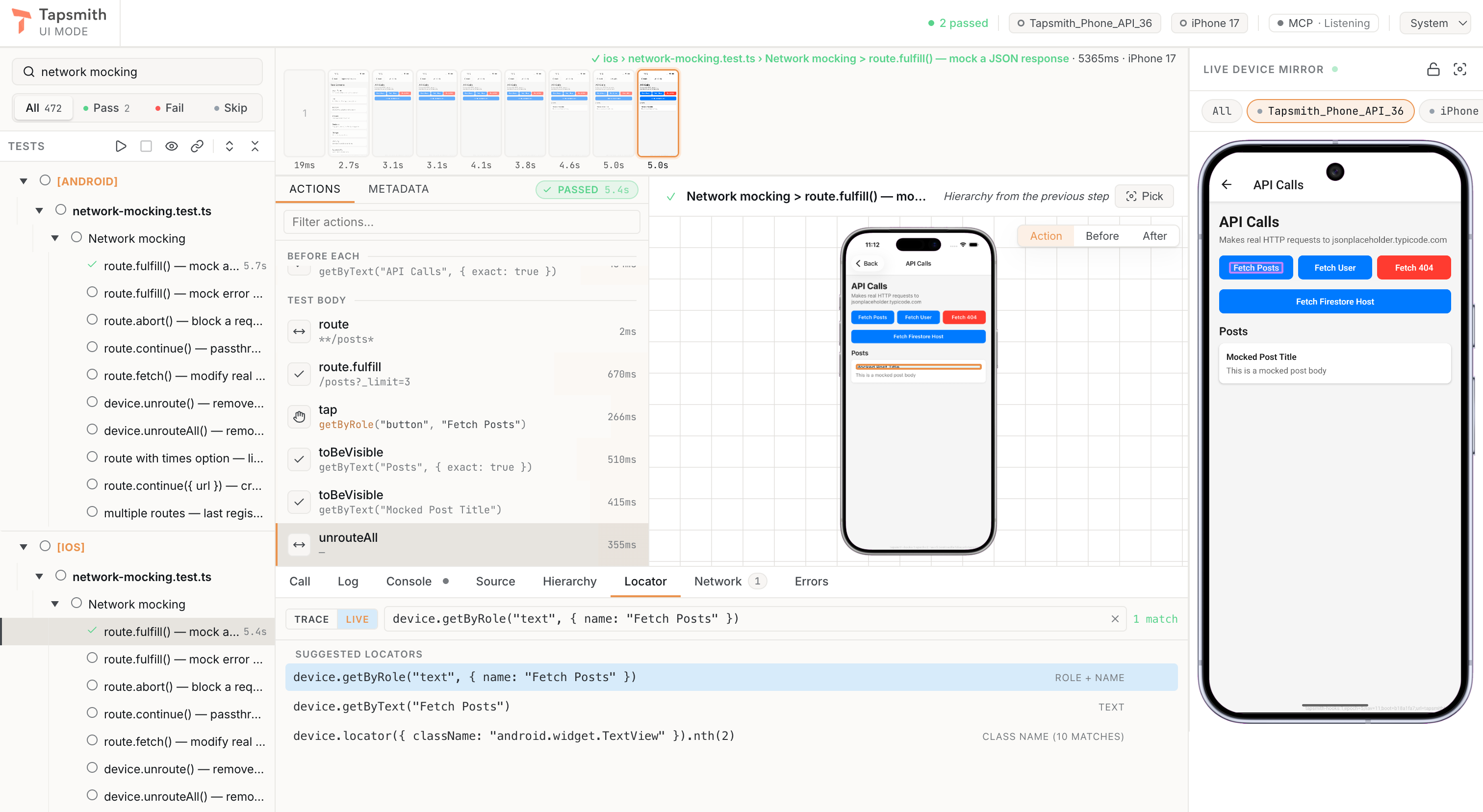
The Locator tab has a Trace | Live toggle showing which hierarchy it is bound to: Trace matches against the selected action’s captured hierarchy (highlights draw on the screenshot), Live matches against the device’s current UI (highlights draw on the mirror). Picking sets the source automatically — the toggle lets you flip a locator between the two without re-picking. Switching to Live takes a fresh snapshot of the device UI.
Picking works even while the mirror is locked (it’s read-only), and it works against whatever is on screen: drive the app to the screen you care about, then pick. In multi-device mode, the picker targets the device tab you’re viewing (it’s unavailable in the “All” grid view).
MCP integration
Section titled “MCP integration”The UI server exposes a Streamable HTTP MCP endpoint that AI coding agents (Claude Code, Cursor, Codex, etc.) can connect to. This gives agents 16 tools for test discovery, execution, result browsing, device interaction, and watch mode control — all sharing the same session as the UI.
To connect an agent:
claude mcp add tapsmith --transport http http://localhost:<port>/mcpThe Device activity panel (the “MCP” button in the top rail) keeps these connect instructions — endpoint URL and the claude mcp add one-liner, both copyable — pinned above the feed whenever no agent is attached.
Both the UI user and the MCP agent share the same test session. Runs triggered by either side appear in the UI, and mutual exclusion ensures only one test run happens at a time.
See MCP Server for the full list of tools and usage patterns.
Multi-project support
Section titled “Multi-project support”When your config defines multiple projects, the UI groups tests by project name. Each project routes to its own device (Android emulator, iOS simulator, physical device, etc.).
import { defineConfig } from "tapsmith";
export default defineConfig({  projects: [    {      name: "Pixel 6",      use: {        platform: "android",        avd: "Pixel_6_API_34",        apk: "./android/app-debug.apk",        launchEmulators: true,      },    },    {      name: "iPhone 16",      use: {        platform: "ios",        simulator: "iPhone 16",        app: "./ios/MyApp.app",      },    },  ],});
Running a test from the “Pixel 6” project routes it to the Android emulator; running one from “iPhone 16” routes it to the iOS simulator. The UI handles this routing transparently.
Workers
Section titled “Workers”Every UI session runs tests in a persistent worker process per device. With a single device, that one worker attaches to the daemon and agent the CLI already set up — nothing is provisioned twice, and there is no per-run process start-up: clicking Run goes straight to the runner (the declared app reset, then your tests).
When workers > 1, one worker per device is started, files are dispatched across them in parallel, and per-worker device screens are displayed in the UI.
npx tapsmith test --ui --workers 4The device is prepared before you click Run
Section titled “The device is prepared before you click Run”After a run finishes (and after startup), the worker resets the app in the background to the state the next run will need — the declared appReset policy of the file you have selected, or the file you last ran. When you click Run, the worker only verifies the session (well under a second) and the trace records the reset as satisfied by background preparation instead of paying for it inline. The run summary tells you what you got: First action after 0.6s (device was prepared) versus (app reset ran inline).
The device chip in the top rail shows the state: ready (prepared, with what it was prepared for and how long it took in the tooltip), preparing…, stale (something touched the device since — an MCP agent’s tap, a gesture on the mirror — and it will be prepared again after a short pause), or nothing when preparation between runs is off. Preparation starts as soon as a run ends (a warm reset is sub-second, and the trace keeps every post-action screenshot), but holds off while you are interacting with the mirror so the screen is not yanked away under your finger. After a run you stopped, or one where a test failed on that device, the app is held as-is so you can inspect it — preparation re-arms when you select a different file, click Prepare device now, or start the next run.
Right-click the chip for Prepare device now, Cancel preparation, and the Prepare device between runs toggle (remembered in this browser). Background preparations, mirror gestures and worker recycles all appear in the Device activity panel alongside MCP tool calls; a segmented filter (All | Agent | Device) narrows the feed to one stream, with a “N hidden” count so filtered rows are never mistaken for lost ones. The filter resets to All each session — the interleaved view is where cause meets effect (an agent’s tap next to the re-preparation it triggered).
Teams can set the session default in the config — ui: { prepareBetweenRuns: false }, or ui: { prepareDelayMs: 5000 } for a quiet period after each run (useful when onReset has backend side effects, or on personal physical devices). An explicit choice in the chip menu still wins for that person.
Fresh code on every run
Section titled “Fresh code on every run”Test files are re-imported on every run. Files they import — page objects, fixtures, helpers — live in the worker’s module cache, so when one of those changes under your project root the UI recycles the worker (a ~1–2 s process restart against the same daemon; the device is untouched). A change during a run is applied as soon as the run ends. Use Respawn worker if a device session ever needs to be rebuilt from scratch.
Mutual exclusion
Section titled “Mutual exclusion”Only one test run can be active at a time, whether triggered from the UI or from an MCP agent. If you click “Run” in the UI while an MCP agent is already running tests, the run is queued. Both sides see the same results.